 Game Cast
Put Game Cast on your home screen.
Add it once. It opens full screen with its own icon, like any app. No App Store needed.
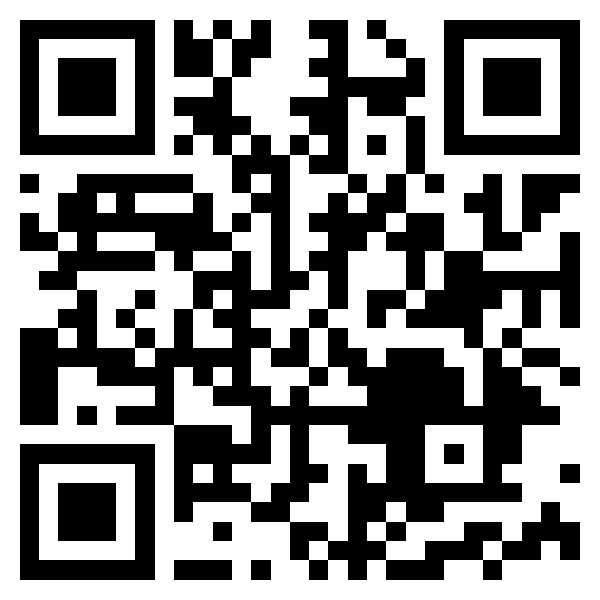
Install on iPhone or iPad
Open Game Cast in Safari
Go to gamecastapp.com/app, then tap Share at the bottom.
Tap Add to Home Screen
Scroll down the list to find it.
Tap Add
Leave Open as Web App switched on.
Find the icon
It lands in the first open spot on your home screen.
Open it and sign in
Game Cast now runs full screen, like any app.
On iPad? Same steps. Share is at the top right.
Install on Android
Open the menu
In Chrome, tap ⋮ at the top right.
Add it
Tap Add to home screen or Install app.
Tap Install
Tap Install. Done.
Troubleshooting
Quick fixes.
Facebook, Instagram, and email apps use their own browser. Tap Open in Safari or Open in Chrome.
Tap Edit Actions at the bottom of the Share sheet. Private tabs hide it.
Open as Web App was off. Delete the icon and add it again.
Normal the first time. The app keeps its own login.
Open from the icon, then check Settings › Notifications › Game Cast.
You don't. It updates itself every time it opens.
| Where you open Game Cast | Home screen icon | Browser tab |
|---|---|---|
| Full screen, no address bar | Yes | No |
| Own spot in the app switcher | Yes | No |
| Score and schedule notifications on iPhone | Yes | No |
| One tap from your home screen | Yes | No |
| Always the latest version | Yes | Yes |